WeLink + n8n Integration
This guide explains how to integrate WeLink with n8n workflows, enabling automated LinkedIn-profile operations, connection management, messaging, and more — without manual effort after setup.
Common Use Cases
1. Profile Engagement Pipeline
Automatically view, follow, or connect with profiles discovered through WeLink searches. Trigger AI-generated messages when users follow back, and maintain a continuous engagement loop.
2. Lead Discovery & Enrichment
Run WeLink regular searches, save all discovered profiles to Google Sheets, and enrich each profile with automated view/follow actions. Use this data as input for downstream outreach or CRM updates.
3. Sheet-Driven Outreach
Use Google Sheets as the source of truth for prospects. n8n reads each row and automatically chooses whether to send a message (if connected) or send a connection request (if not connected).
4. Re-engagement Automation
Identify inactive users and automatically withdraw old invites or send fresh invitations using WeLink APIs.
Keep your invite list clean and improve acceptance rates.
5. Real-Time Event Automation
React instantly to Webhook events from WeLink — such as profile follows, connection acceptances, or search completions — and trigger follow-ups, notifications, or message sequences.
6. CRM Synchronization
Sync WeLink profile actions with your CRM. Store discovered profiles, update contact stages when they follow back or connect, and record engagement events for your sales workflow.
7. Team Notifications & Reporting
Send Slack or email alerts when key events occur — new search results, follow-backs, connection acceptances, or API failures. Use Sheets to store and report all activity automatically.
How to Get Started
Below are the steps required to configure WeLink with n8n.
Create Your WeLink API Credentials
Inside the WeLink dashboard:
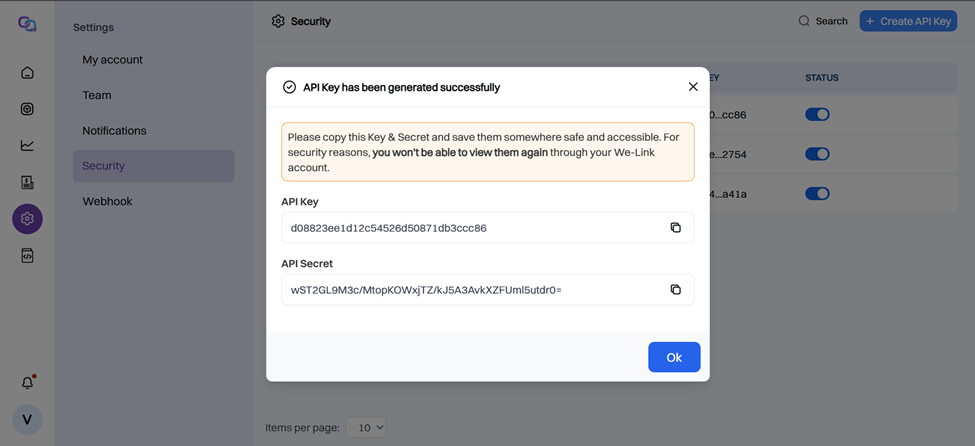
- Go to Settings → Security
- Create a new API Key
- Copy the API Key and Secret
Create a Credential in n8n
Inside your n8n workspace:
-
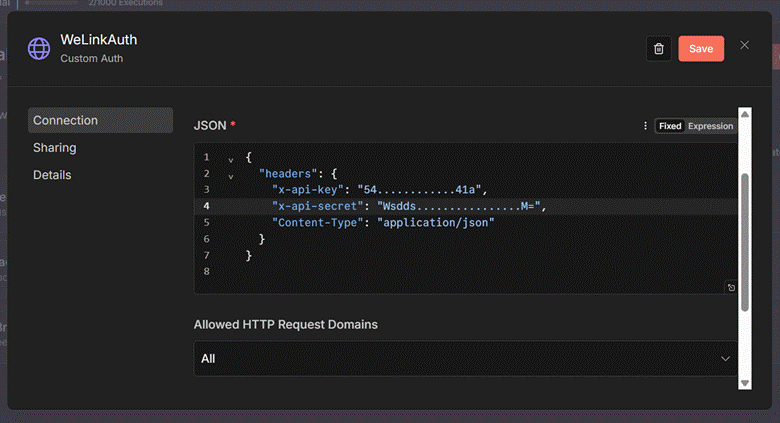
Go to Overview → Credentials → New
-
Choose Custom Auth
-
Add your authentication details like:
-
Save it as WeLink auth
Global Variables in n8n
n8n allows you to store common values as global variables so they can be reused across all workflows.
Steps to Create Variables
- Go to n8n Dashboard → Overview → Variables
- Click Add Variable
- Set:
- Key → Name of the variable (example:
accountId) - Value → Actual value
- Key → Name of the variable (example:
- Save the variable
Use it in workflows like this:
{{ $vars.accountId }}
This credential will be used in all HTTP Request nodes calling WeLink APIs.