We-Link MCP Beta
The We-Link MCP server connects your LinkedIn accounts to AI assistants such as Claude, ChatGPT, and Cursor. Once it's connected, you can ask your assistant in plain language to find leads, read profiles, catch up on messages, or grow your network, and it carries out the work through your We-Link account.
With We-Link MCP, your assistant can:
- Connect and manage your LinkedIn accounts
- Find people by keywords, or pull in the members of a group, the attendees of an event, or the people who reacted to a post
- Read LinkedIn profiles and company pages
- Read your conversations and reply to them
- Send connection requests and messages
- Manage your network: invitations, follows, connections, endorsements, and likes
- Show your We-Link plan, remaining credits, and where your credits were spent
How to get started
Choose your AI assistant for step-by-step setup:
Signing in
Every assistant connects to the same server URL:
https://mcp.we-link.ai/mcp
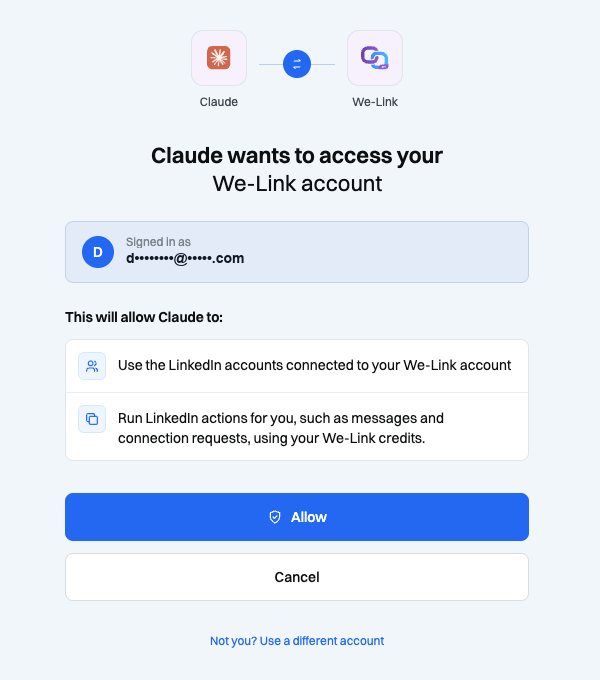
When you add the server, your assistant opens a We-Link sign-in page. Sign in with your We-Link account and click Allow. Your assistant can then use the LinkedIn accounts connected to your We-Link account. Actions it runs use your We-Link credits, the same as actions run from the dashboard.
If you haven't connected a LinkedIn account yet, you can ask your assistant to connect one, or see Connecting an Account.
Available Tools
You don't need to call these tools yourself. Describe what you want, and your assistant picks the right tool. The tool names below appear in your assistant when it uses them.
Choosing a LinkedIn account: if you have more than one LinkedIn account connected, name the one you want in your request, for example "using my Sales account". Otherwise your default account is used. Until you choose a default, it's the account you connected most recently.
Staying in control: before your assistant sends a message, sends a connection request, or takes any other action that someone else can see, it asks you to confirm who it's for and what it says. For actions that can't easily be undone, such as removing a connection or withdrawing an invitation, it first explains exactly what will happen, and nothing changes until you say yes.
Response times: LinkedIn actions run in a secure cloud browser, so most take 10–60 seconds.
Your We-Link Account
| Tool | What it does |
|---|---|
| welink_connect_linkedin_account | Connects a new LinkedIn account to We-Link. You get a link (or a Connect LinkedIn button in assistants that support it) where you choose a location or your own proxy, optionally set up two-factor authentication, and sign in to LinkedIn. The link expires after about 15 minutes; ask again for a new one. |
| welink_list_linkedin_accounts | Shows the LinkedIn accounts connected to your We-Link account. |
| welink_set_default_linkedin_account | Sets which LinkedIn account is used when you don't name one. |
| welink_get_my_account | Shows your We-Link plan, its renewal or trial end date, your remaining credits, and how many credits each action costs. |
| welink_get_credit_usage | Shows where your credits went: by action and by LinkedIn account, plus any credits refunded for failed actions. Team admins also see usage for each team member. |
Profiles & Search
| Tool | What it does |
|---|---|
| welink_search | Finds people by keywords, or from a LinkedIn link to a people search, a group (its members), an event (its attendees), or a post (the people who reacted). Uses standard LinkedIn search; Sales Navigator and Recruiter searches aren't supported. |
| welink_get_my_linkedin_profile | Gets your own LinkedIn profile: headline, location, about, experience, skills, and contact details. |
| welink_get_linkedin_profile | Gets someone else's profile from its link. It reads the profile without visiting the page, so it usually won't appear in their "Who viewed your profile". |
| welink_view_linkedin_profile | Visits someone's profile on purpose, so your visit can appear in their "Who viewed your profile" (depending on your LinkedIn privacy settings). |
| welink_get_linkedin_company | Gets a company's LinkedIn page: industry, size, followers, headquarters, website, and description. |
Messaging
| Tool | What it does |
|---|---|
| welink_list_linkedin_conversations | Lists your latest one-to-one conversations from your LinkedIn inbox. Conversations are not marked as read. |
| welink_get_linkedin_conversation | Reads the messages in a conversation. Messages are not marked as read. |
| welink_send_linkedin_message | Replies in a conversation, or sends a new message to one of your connections. To reach someone you aren't connected to, send a connection request first. |
Your Network
| Tool | What it does |
|---|---|
| welink_list_linkedin_connections | Lists your connections, most recent first. |
| welink_list_linkedin_sent_invitations | Lists connection requests you've sent that haven't been accepted yet. |
| welink_get_linkedin_profile_views | Shows who viewed your profile recently. Private viewers are included in the total only. |
| welink_list_linkedin_celebrations | Lists birthdays, new jobs, and work anniversaries in your network. |
| welink_list_linkedin_events | Lists the events shown on your My Network page. |
| welink_list_linkedin_groups | Lists the groups you belong to (up to 100). |
| welink_list_linkedin_company_pages | Lists the company pages you manage. |
| welink_get_linkedin_subscriptions | Checks whether your LinkedIn account has Sales Navigator or Recruiter. |
Network Actions
| Tool | What it does |
|---|---|
| welink_send_linkedin_connection_request | Sends a connection request, with an optional note. If you're already connected or a request is already pending, nothing is sent. LinkedIn limits how many requests you can send each week. |
| welink_withdraw_linkedin_invitation | Withdraws a connection request you sent. LinkedIn may not let you invite the same person again for up to 3 weeks. |
| welink_follow_linkedin_person | Follows someone so their posts appear in your feed. You don't need to be connected. |
| welink_unfollow_linkedin_person | Unfollows someone. If you're connected, you stay connected. |
| welink_remove_linkedin_connection | Removes someone from your connections. LinkedIn doesn't notify them, but reconnecting needs a new request that they accept. |
| welink_endorse_linkedin_skills | Endorses up to 3 skills of one of your connections. LinkedIn chooses which skills, and the person can see the endorsement. |
| welink_like_latest_linkedin_post | Likes the most recent post by someone that you haven't liked yet. The person can see the like. |
Example Prompts
After the server is connected, ask your assistant in plain language. For example:
Find VPs of Sales at SaaS companies in Boston.
Who are the people who reacted to this post? <post link>
Summarize my unread LinkedIn conversations and draft replies.
Send a connection request to this profile with a short note introducing me.
Who in my network has a birthday or work anniversary this week?
How many We-Link credits do I have left, and what used the most this month?
Limits and Quotas
The MCP server uses native account-level rate limits and rolling daily quotas. These limits protect the connected LinkedIn account from automated behavior flags, security caps, and temporary account restrictions.
If a workflow reaches a daily quota, the server returns QUOTA_EXCEEDED_DAILY message. Wait until the reset time in the error metadata before retrying. For general API limits, see Rate Limits.
Troubleshooting
| Error code | Cause | Fix |
|---|---|---|
WC_AUTH_PIN_REQUIRED | LinkedIn requires OTP, PIN, or phone verification. | Generate the current code and send it in your MCP client when prompted. |
WC_AUTH_WRONG_PASSWORD | The LinkedIn credentials stored in We-Link are invalid. | Update the credentials in We-Link and retry. |
Handling LinkedIn Verification
When LinkedIn requests verification, follow these steps to authenticate:
-
Get your OTP: Copy the latest OTP from your email or generate it using your LinkedIn 2FA secret in a TOTP-compatible authenticator app.
-
Send the code: Paste and send the code directly into your MCP client chat.
-
Retry workflow: Final step. Once the verification succeeds, retry your original request.
Complete verification promptly. If the auth session expires, restart the verification flow.
Security
Never paste API keys, API secrets, LinkedIn passwords, or LinkedIn session cookies into your AI assistant's chat. To stop an assistant from using your We-Link account, remove the We-Link connector from that assistant.